September 10, 2026 • Doug Porter • 11 min reading time • Prices verified June 25, 2026
The SilverFast Learning Curve Is Real: Software Friction Across Every Plustek Scanner
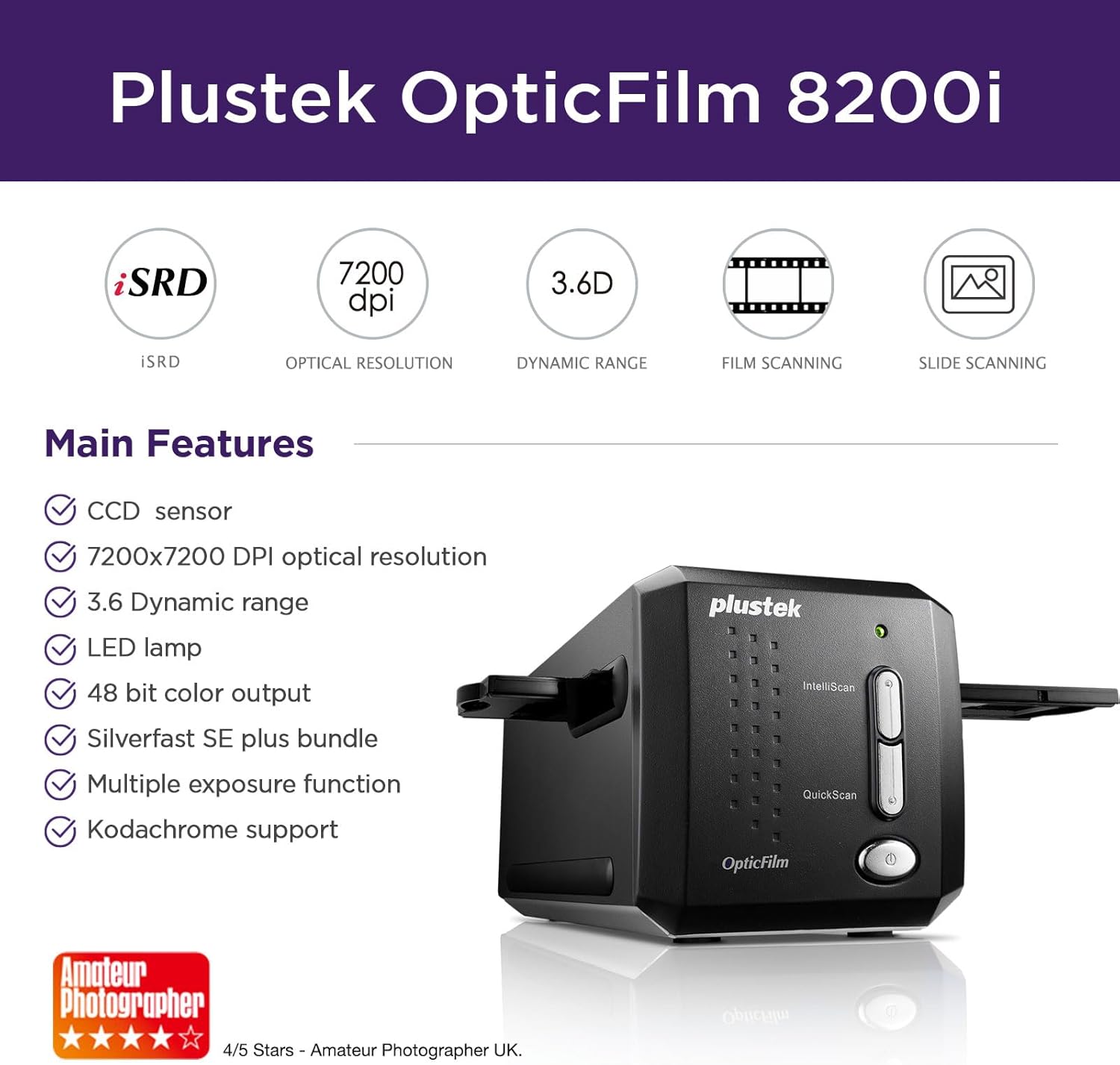
That box of old slides sitting on your desk right now — the ones you pulled from your parents’ closet or inherited from a grandparent who shot everything on Kodachrome in the 1970s — represents a genuine, irreplaceable piece of family history. You bought a Plustek scanner (a dedicated film scanner, meaning a device built specifically to digitize film negatives and slides rather than flat documents) partly because reviewers praised the image quality, and partly because you saw that it ships with SilverFast, a professional-grade scanning software suite from a German company called LaserSoft Imaging. What nobody told you clearly enough: SilverFast is powerful in the way a full recording studio is powerful. You can absolutely get extraordinary results out of it. You can also spend three weeks sending support emails before you figure out why your dust removal is mangling your grandmother’s face. This guide exists to shorten that gap between “unboxed” and “actually scanning well.”
You don’t need to master every feature. You need to understand what the friction points are, why they exist, and how to route around them cleanly. That’s what we’re covering here.
| EDITOR'S PICKPlustek OpticFilm 8300i Ai Film… | Mid-tierPlustek OpticFilm 8100-35mm Neg… | Budget pickPlustek OpticFilm 8200i SE | |
|---|---|---|---|
| Software | SilverFast Ai Studio 9 | SilverFast SE Plus 9 | SilverFast SE Plus 9 |
| Resolution | — | 7200 DPI | 7200 DPI |
| Color depth | — | 48-bit | 48-bit |
| IR dust removal | — | — | ✓ |
| Calibration target | ✓ | — | — |
| QuickScan Plus | ✓ | — | — |
| Price | $539.00 | $349.00 | $339.15 |
| See on Amazon → | See on Amazon → | See on Amazon → |
Why SilverFast Feels Hard (And Why It’s Actually Worth It)
SilverFast is not beginner software wearing a professional costume. It is professional software that happens to ship in boxes alongside entry-level and mid-tier hardware. That mismatch in expectation is responsible for most of the frustration you’ll read in reviews.
Across aggregated buyer reviews of the Plustek OpticFilm 8200i SE, a consistent pattern emerges: reviewers praise the scan quality but flag that the software “needs simpler documentation” and frequently recommend skipping most of its features in favor of doing color correction in whatever photo editor the buyer already knows. That’s actually reasonable advice for a first week. The problem is that it leaves real quality on the table permanently, because SilverFast’s core value — its NegaFix film profile library, its multi-exposure HDR capture (called Multi-Exposure or ME in the interface), and its SCC selective color correction tools — cannot be replicated in Photoshop or Lightroom after the fact. You have to engage with SilverFast to get the ceiling it promises.
The reviewers aren’t wrong that the documentation is thin. As the imaging-resource.com review of the Plustek OpticFilm 135i notes, the hardware earns strong marks but there is “very little documentation on achieving all the capability” of the bundled software. LaserSoft Imaging’s own manual — the SilverFast Ai Studio 9 User Manual — runs to several hundred pages and is thorough in the way a legal contract is thorough: technically complete, functionally hard to navigate for a working question.
So the friction is real. Here’s how to think about it strategically.
The iSRD Dust-Removal Problem: What’s Happening and What to Do
The single most alarming friction point across Plustek reviews is iSRD (infrared-based scratch and dust removal — a technology that uses a separate infrared light pass to detect physical dust particles on the film surface and remove them digitally). When it works, it’s almost magic: dust that would take twenty minutes to clone out in Photoshop disappears automatically. When it fails, it produces disturbing artifacts — warped edges, smeared tones, or what one documented buyer case described as distorted output severe enough to prompt a replacement unit request after three weeks of tech support correspondence.
That’s a serious red flag, and it deserves honest treatment. Here’s what’s almost certainly happening in those failure cases:
iSRD does not work on Kodachrome. This is a documented limitation across all IR-based dust removal systems, not just Plustek or SilverFast. Kodachrome uses a different dye structure than other color film stocks — it absorbs infrared light rather than being transparent to it, which causes the scanner’s infrared channel to misread the film and flag actual image content as dust. The result is exactly the kind of destruction described in those support cases. If you’re scanning Kodachrome (identifiable by the “Kodachrome” text on the film edge or the distinctive warm saturation of the slides), turn iSRD off. Full stop. Dust removal on Kodachrome must be done manually in post.
Filmscanner.info’s comparative review of the Plustek OpticFilm 8300i Ai specifically addresses this limitation and recommends manual dust removal as the only safe option for Kodachrome stocks. The photopxl.com film scanning workflow guide similarly lists Kodachrome as an IR-incompatible stock alongside certain black-and-white films that use a silver dye layer.
If you’re scanning non-Kodachrome color negative film (C-41 process — the standard consumer roll film from the 1980s and 1990s) or E-6 slide film (not Kodachrome, despite both being slides), iSRD should function reliably. If you’re still seeing distortion on those stocks, the most common cause is an iSRD intensity setting that is too aggressive. Pull it back to the lowest effective level before concluding there’s a hardware fault.
By the Numbers: iSRD Compatibility at a Glance
| Film Type | iSRD Compatible? | Recommended Setting |
|---|---|---|
| C-41 color negative (most consumer film) | Yes | Low to Medium |
| E-6 slide film (Ektachrome, Velvia, etc.) | Yes | Low to Medium |
| Kodachrome (K-14 process) | No | Disable entirely |
| Black-and-white silver gelatin | No | Disable entirely |
SE vs. SE Plus vs. Ai Studio: Picking the Right Tier Before You Blame the Software
One of the most common sources of buyer frustration is discovering mid-project that the version of SilverFast bundled with their scanner doesn’t include the feature they need. SilverFast ships in three main tiers with Plustek hardware, and the differences matter.
SilverFast SE (the base tier bundled with entry-level Plustek models like the 8200i SE) gives you basic scanning with NegaFix film profiles and manual controls. What it doesn’t give you: the JobManager batch queue for multi-frame automation, the full SCC (selective color correction) tool set, or the HDRi RAW format that saves an unprocessed scan file for later reprocessing without rescanning. For occasional personal use, SE is adequate. For anyone working through a box of 200 slides, the absence of batch automation becomes painful quickly.
SilverFast SE Plus adds the JobManager and a wider tool set. It’s the middle ground that the luminous-landscape.com film scanning software roundup identifies as the practical minimum for semi-professional or high-volume personal work.
SilverFast Ai Studio is the full professional suite — everything including HDRi RAW output (meaning you capture the full scanner data once and can reprocess it later as software improves), IT8 color calibration target support (a physical calibration card that brings your scanner’s color response to a verified standard), and the complete SCC workflow. The LaserSoft Imaging Ai Studio 9 manual documents the full feature delta between tiers. If you’re at the Plustek OpticFilm 8300i Ai level and doing serious archival work, Ai Studio is where the hardware’s ceiling becomes accessible.
The key limitation that one OpticFilm 8300i SE reviewer called “workflow-breaking”: SilverFast licenses are tied to the specific scanner they ship with. If you upgrade your hardware, your SilverFast license does not transfer. You purchase a new license or pay an upgrade fee. This is not a Plustek decision — it’s LaserSoft Imaging’s licensing model — but it affects your total cost of ownership calculation when you’re projecting an upgrade path.
Finding Better Documentation Than the Manual
The included documentation gap is real and acknowledged broadly. Here’s where practitioners actually learn SilverFast:
LaserSoft Imaging’s own YouTube channel is the most reliable first stop. The video tutorials are produced by the software maker, are indexed by feature and scanner model, and are updated for current versions. They cover the NegaFix workflow, iSRD settings, and the IT8 calibration process in a way the manual doesn’t. Search “SilverFast tutorial” plus your specific feature name on the platform.
Filmscanner.info (filmscanner.info) maintains one of the most detailed English-language technical references for film scanning software and hardware, including SilverFast-specific configuration notes organized by scanner model. It is the closest thing the community has to an independent reference manual.
Photopxl.com covers film scanning workflows with enough technical depth to be useful for practitioners at the 8300i level, including color management and calibration guidance.
The LaserSoft Imaging knowledge base and support ticket system is where you should go before assuming a hardware problem. As multiple Plustek buyers across review aggregators note, Plustek customer service is genuinely responsive — a real differentiator in a category where support is often forum-only. But for SilverFast software questions specifically, LaserSoft Imaging is the responsible party, not Plustek. Contact both if you’re in the “three weeks of emails” situation; the problem is almost always a software configuration issue, not a hardware defect.
QuickScan vs. SilverFast: When Is the Simple Path Good Enough?
Plustek bundles QuickScan (a simplified scanning utility with minimal controls, designed for users who want to scan quickly without learning the full SilverFast interface) with most of its hardware. The honest answer on whether QuickScan is “good enough”:
For scanning to share on a screen — social media, family group messaging, a slideshow at a reunion — QuickScan is fine. It produces a usable file with automatic settings.
For archival work, fine-art printing, or anything where you intend the scan to be the permanent master record of an irreplaceable negative, QuickScan is not sufficient. It does not give you access to NegaFix film profiles (which correct for stock-specific fade signatures — the cyan shift in old Kodachrome, the magenta cast in aging Ektachrome), does not support HDRi RAW capture, and does not let you apply the color management workflow that distinguishes a technically accurate scan from a technically adequate one.
The 8200i SE buyer who recommended “skipping most SilverFast features” in favor of an external photo editor is giving you advice that works for basic digitization. If that’s your goal, it’s valid. If you bought a Plustek specifically because you want archival quality — because these negatives matter and you want to do this once and do it right — the friction of learning SilverFast properly is not optional. It’s the job.
Frequently Asked Questions
Can I use SilverFast with any scanner, or is it locked to the one it came with? SilverFast licenses are hardware-locked to the specific scanner model they ship with. You cannot take the SilverFast SE that came with your OpticFilm 8200i SE and use it with a different scanner. LaserSoft Imaging sells scanner-specific licenses; upgrading your hardware means purchasing a new license or paying an upgrade fee.
What is the difference between SilverFast SE Plus and SilverFast Ai Studio? SE Plus adds batch automation (JobManager) and expanded color tools over base SE. Ai Studio adds HDRi RAW format output (scan once, reprocess later), IT8 color calibration target support, and the full professional SCC workflow. For archival work, Ai Studio is the meaningful tier. The LaserSoft Imaging Ai Studio 9 documentation details the complete feature comparison.
Is QuickScan good enough for basic negative scanning, or do I need SilverFast for quality results? QuickScan is adequate for digitizing-to-share. For archival quality — correct film-profile color rendition, HDR shadow detail, calibrated output — SilverFast is necessary. The gap is most visible in color accuracy and shadow detail when you compare outputs side by side.
Why does my iSRD dust removal produce distorted output? The most common cause: you’re scanning Kodachrome, which is incompatible with infrared dust removal due to its K-14 dye structure. Disable iSRD entirely for Kodachrome and any black-and-white film with a silver dye layer. For compatible films, try reducing iSRD intensity before concluding there’s a hardware fault.
Where can I find better SilverFast documentation than the included manual? LaserSoft Imaging’s official YouTube tutorials, filmscanner.info’s scanner-specific configuration guides, and photopxl.com’s film scanning workflow coverage are the three most consistently useful independent resources. The LaserSoft support knowledge base covers software-specific troubleshooting.
Does Plustek offer real technical support if I get stuck? Yes — Plustek customer service is one of the few consistent bright spots across buyer reviews at every price point. For hardware issues, contact Plustek directly. For SilverFast software configuration questions, contact LaserSoft Imaging. Knowing which company owns which problem saves significant time.
The Decision Rule
If you bought a Plustek for occasional family scanning and the complexity is already feeling like too much: use QuickScan now, let the dust settle, and return to SilverFast when you have two hours and a specific project to work through. The hardware will still be there.
If you’re at the 8300i Ai level, doing archival work on irreplaceable material: invest the time in SilverFast Ai Studio properly. Disable iSRD on any Kodachrome immediately. Run an IT8 calibration before your first serious scanning session. The ceiling the hardware promises is only accessible through the software. The learning curve is real, but so is what’s on the other side of it.