September 15, 2026 • Doug Porter • 11 min reading time • Prices verified June 25, 2026
SilverFast, ScanWise, and QuickScan: The Software Stack Nobody Warns You About Before Buying a Plustek
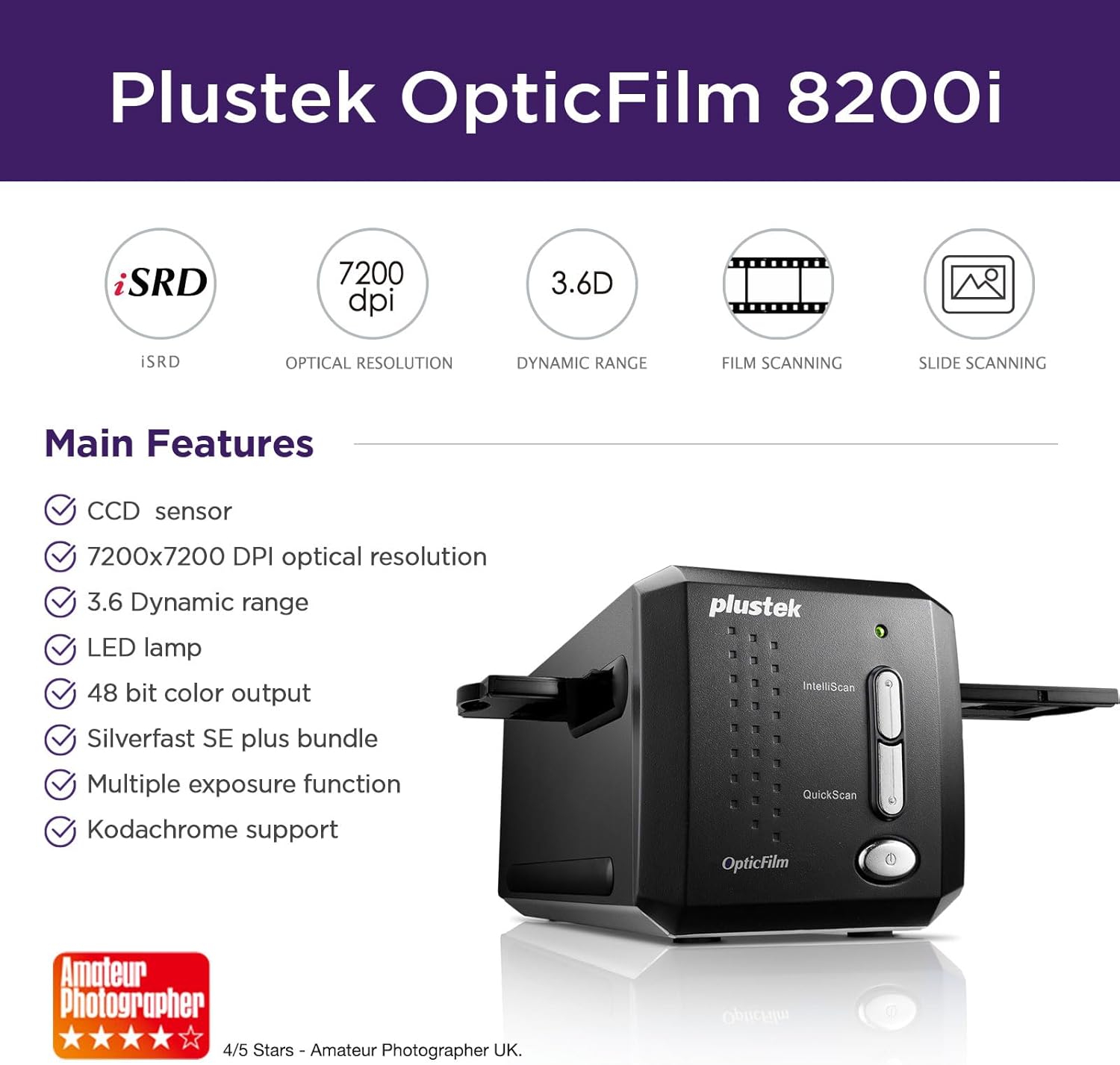
You bought the scanner for the hardware. Then SilverFast showed up.
If you’ve just unboxed a Plustek OpticFilm — or you’re still in the decision window with one under serious consideration — the most consistent surprise waiting for you isn’t the scan quality. The hardware on the 8200i SE, 8300i, 8300i SE, and 135i is genuinely well-regarded. The surprise is the software layer: a three-product stack (SilverFast, ScanWise, and QuickScan) that ships with every Plustek, comes with a learning curve that the paper manual barely addresses, and contains at least one gotcha — device-locking — that can break your existing workflow if you own other scanners. This article names the tradeoffs clearly, explains what each software tier actually does, and tells you when you’re allowed to ignore most of it.
A quick vocabulary note before we go deeper: SilverFast is scanning software made by a German company called LaserSoft Imaging — think of it as the “operating brain” that controls the scanner and produces your image files. iSRD (infrared-based dust and scratch removal) is a hardware feature built into certain Plustek models that uses an invisible infrared light pass to detect physical debris on your film and auto-correct it. ScanWise and QuickScan are simpler scanning interfaces also bundled with Plustek scanners — less powerful, but faster to learn. The differences between these tools determine whether your scanning workflow is manageable or miserable.
| EDITOR'S PICKPlustek OpticFilm 8300i Ai Film… | Mid-tierPlustek OpticFilm 135i - Automa… | Budget pickPlustek OpticFilm 8200i SE | |
|---|---|---|---|
| Max resolution | — | 7200 dpi | 7200 dpi |
| Film formats | 35mm film & slide | 35mm slides & film | 35mm film & slide |
| Batch convert | — | ✓ | — |
| Bundled software | SilverFast Ai Studio 9 | — | SilverFast SE Plus 9 |
| QuickScan Plus | ✓ | — | — |
| Calibration target | ✓ | — | — |
| Price | $539.00 | $449.65 | $339.15 |
| See on Amazon → | See on Amazon → | See on Amazon → |
The Device-Locking Problem: What It Means If You Already Own a Flatbed
This is the one that blindsides the most buyers, and it deserves top billing.
SilverFast licenses are device-locked. The copy of SilverFast SE, SE Plus, or Ai Studio that ships in the box with your Plustek is paired to that specific scanner’s hardware ID. It will not activate or function with any other scanner — including your existing Epson Perfection V850 Pro, a second Plustek unit, or any other device you might plug in. As reviewers at filmscanner.info note in aggregated feedback on the 8300i SE specifically, this caught multiple buyers completely off guard, particularly those who own a flatbed for large-format work and were adding a Plustek for 35mm.
The practical consequence: If you run a mixed-scanner studio — a flatbed for 4×5 negatives plus a Plustek for 35mm rolls — you need two separate SilverFast licenses, each tied to its respective device. There is no cross-device or household license. LaserSoft Imaging’s published licensing terms confirm this explicitly.
The cost math:
| SilverFast Edition | Bundled with | Upgrade/standalone price range (2025–2026) |
|---|---|---|
| SE (base) | 8200i SE, entry Plusteks | Included |
| SE Plus | 8300i SE | Included; modest upgrade cost from SE |
| Ai Studio | 8300i Ai, 135i | Included in premium models; ~$150–$250 standalone upgrade |
Prices verified against LaserSoft Imaging’s published upgrade matrix as of early 2026. Verify current pricing directly at lasersoft-imaging.com before purchasing, as upgrade pricing changes seasonally.
If you’re comparing Plustek + SilverFast against a workflow centered on Epson Scan 2 or a different driver, factor in that your existing SilverFast license — if you have one for a flatbed — transfers nothing. Start from zero.
SilverFast SE vs SE Plus vs Ai Studio: The Honest Version for Non-Professionals
LaserSoft Imaging’s own comparison pages present all three tiers in feature-matrix form, but the meaningful differences for a practitioner audience collapse into three questions.
Do you need multi-exposure scanning? Ai Studio includes the SilverFast Multi-Exposure feature (sometimes called HDRi), which takes two scans at different exposures and merges them to recover shadow and highlight detail. SE and SE Plus do not include this. For dense slide film — Kodachrome, Velvia — this is legitimately useful. photopxl.com’s SilverFast tier comparison feature documents that multi-exposure is the single most technically impactful difference between Ai Studio and the lower tiers, and that for standard negative film the gap narrows considerably.
Do you need the JobManager batch queue? Ai Studio includes an automated JobManager that lets you queue unattended scanning overnight. SE and SE Plus require you to trigger each scan manually. For anyone processing more than 30–40 frames in a session, this alone may justify the upgrade cost.
How much do you trust automated color correction? Ai Studio’s iSRD and color-restoration algorithms are more aggressive and configurable. SE Plus is a middle ground. SE is workable but leans heavily on your external editor to finish the job.
The honest summary, based on aggregated reviewer feedback at filmscanner.info and imaging-resource.com: SE Plus is the practical sweet spot for most 35mm and medium-format work. Ai Studio earns its cost for dense slide work and batch volumes above ~500 frames per month. Plain SE is where you’ll wish you had more tools within a few sessions.
iSRD Dust Removal: When It Works, When It Doesn’t, and One Documented Failure Mode
iSRD (Infrared-based Scratch and Dust Removal) is the feature that appears most often in both praise and complaints across Plustek reviews — sometimes in the same product line.
When it works: Reviewers of the 8300i SE consistently describe iSRD as the primary reason to choose the product. The infrared pass detects surface debris (dust, small scratches) that doesn’t register under infrared because it’s organic, then interpolates over it. On C-41 color negative film and E-6 slide film, the results are described as excellent — significantly reducing manual spotting time.
When it doesn’t work: Kodachrome. This is not a SilverFast bug or a Plustek defect — it’s a materials property issue documented across the scanning industry. Kodachrome’s dye structure absorbs infrared light in a way that makes it indistinguishable from the dust and scratches iSRD is trying to remove. The correction algorithm effectively can’t tell the image from the defect. Imaging-resource.com’s film scanner workflow overview and filmscanner.info both flag this clearly: disable iSRD entirely when scanning Kodachrome. Running it on Kodachrome produces artifacts that look like smearing or ghosting in the final scan — which brings us to the failure mode.
The three-week support exchange. One documented 8300i review (aggregated in filmscanner.info’s buyer feedback thread) describes a three-week tech support exchange with Plustek over iSRD producing distorted results. The resolution, eventually: the reviewer was scanning a mix of film types, some of which were Kodachrome or Kodachrome-adjacent dye stocks, with iSRD left on globally. The feature was working correctly on the C-41 frames and producing exactly the known Kodachrome artifact on others. The support process didn’t initially surface the film-type variable.
The decision rule: If you’re scanning an unknown box of mixed slides — common in family archive situations — scan a test strip with iSRD on, then the same frames with iSRD off. Compare. If you see smearing or color smudging, you’re likely on Kodachrome or a dye stock with similar infrared behavior. Turn it off and plan to spot manually or in post.
Can You Skip SilverFast Entirely?
Yes. This is under-discussed, and it’s worth stating plainly.
SilverFast is scanning control software — it commands the scanner hardware, processes the raw light data, and outputs an image file. But it is not the only path to getting usable image files from a Plustek scanner. Both ScanWise and QuickScan — the simpler bundled options — can drive the scanner and export TIFFs or JPEGs that you then open in Lightroom, Photoshop Elements, or any other editor you already own.
One 8200i SE reviewer, whose feedback is aggregated at filmscanner.info, makes this point directly: if you have a preferred photo editor and are comfortable doing color correction there, you can use SilverFast (or ScanWise) primarily as a capture tool with minimal correction applied, and do the rest downstream. This workflow sidesteps most of SilverFast’s complexity.
The tradeoff: Skipping SilverFast’s in-scan correction means you’re doing more work in post. For straightforward color negatives with moderate fading, that’s often fine. For heavily faded slides, dense Kodachrome, or batch work where you want consistent output without touching every frame manually, SilverFast’s in-scan tools earn their complexity.
QuickScan is the fastest on-ramp — minimal settings, automatic mode, outputs quickly. It’s fine for proof scans and not ideal for archival masters. ScanWise sits between QuickScan and SilverFast in complexity and capability.
Setup Gotchas and the Missing Confirmation Screen
One complaint that appears independently across multiple Plustek models — the 8200i SE, 8300i, and 8300i SE — is that the Plustek driver installation window doesn’t visibly confirm that setup is complete. The installer finishes, the progress bar fills, and then… it closes. No “Installation successful” dialog, no system prompt to restart, no confirmation that SilverFast activation is ready.
Per Plustek’s published support documentation and confirmed in buyer feedback at filmscanner.info, this is expected behavior, not a failure. The install completed. What’s happening is that the activation of SilverFast requires a separate step — launching SilverFast for the first time while connected to the internet and entering the included license code, which triggers LaserSoft Imaging’s server-side validation.
If your scanner isn’t being recognized after install: The most common cause, based on aggregated support reports, is that the driver was installed before the scanner was connected via USB. Plustek recommends connecting the scanner after driver installation completes and the software prompts for it — or, if that step was missed, running the driver installer again with the scanner already plugged in.
Online resources — specifically Plustek’s own YouTube channel and the user community at filmscanner.info — are consistently described by buyers as more useful than the paper manual for navigating these first-launch steps.
What File Format Should You Save In?
For archival masters: TIFF, uncompressed, at the scanner’s native optical resolution (not interpolated). The Plustek 8300i Ai scans at 7200 dpi optical; saving a 35mm frame at that resolution produces a TIFF of approximately 100–150 MB per image. That’s correct. Don’t let the file size push you toward JPEG for your masters — JPEG compression is lossy and irreversible, and at archival stakes that’s a choice you’ll regret.
For working copies and sharing: export JPEG at 85–95% quality from your masters. Keep the TIFFs.
For RAW workflow: SilverFast Ai Studio supports 64-bit HDRi RAW output (a proprietary format). This is useful if you’re using SilverFast’s own processing pipeline end-to-end, but requires SilverFast to re-open the file, making it less portable. Most practitioners land on TIFF as the better long-term archive format.
Frequently Asked Questions
Can I use SilverFast with my existing Epson flatbed scanner as well as a new Plustek? No — not with the same license. SilverFast licenses are device-locked to a single scanner’s hardware ID. You would need a separate SilverFast license for each device. This is confirmed in LaserSoft Imaging’s published licensing terms and has been independently flagged in 8300i SE buyer reviews at filmscanner.info.
What is the actual difference between SilverFast SE, SE Plus, and Ai Studio for a non-professional user? SE is the base tier — functional but limited. SE Plus adds tools like selective color correction and is the practical minimum for regular archival work. Ai Studio adds multi-exposure HDR scanning, automated batch JobManager queuing, and more aggressive iSRD controls. photopxl.com’s SilverFast comparison feature identifies multi-exposure as the most substantive technical differentiator for dense slide film work.
Why doesn’t the Plustek driver installation window confirm that setup is complete? This is expected behavior — the installer closes silently when finished. SilverFast activation requires a separate first-launch step with the scanner connected and an internet connection active. If the scanner isn’t recognized post-install, reinstall with the scanner connected per Plustek’s support documentation.
My iSRD dust removal is producing distorted results — is that a hardware or software problem? Most likely neither. The most common cause is scanning Kodachrome or a similar dye-based film stock with iSRD active. Kodachrome absorbs infrared in a way that prevents iSRD from distinguishing image content from surface debris. Disable iSRD for Kodachrome and Kodachrome-adjacent stocks; it performs well on C-41 and E-6 film.
Can I skip SilverFast entirely and use Lightroom or Photoshop Elements directly? Yes. ScanWise or QuickScan can drive the scanner and output TIFF or JPEG files that open normally in any editor. You’ll do more correction work downstream, but the approach is legitimate and is explicitly recommended by experienced 8200i SE buyers in aggregated reviews at filmscanner.info.
What file format should I save scans in if I want to do further editing and long-term archiving? Uncompressed TIFF for archival masters; export JPEG for sharing. TIFF is lossless, broadly supported, and doesn’t degrade through editing cycles. SilverFast Ai Studio’s HDRi RAW format is useful within the SilverFast pipeline but is less portable for long-term storage.