September 10, 2026 • Doug Porter • 11 min reading time • Prices verified June 25, 2026
Monitor Calibration Tools for Restorers: Spyder, Calibrite, and When Hardware Beats Software Guesswork
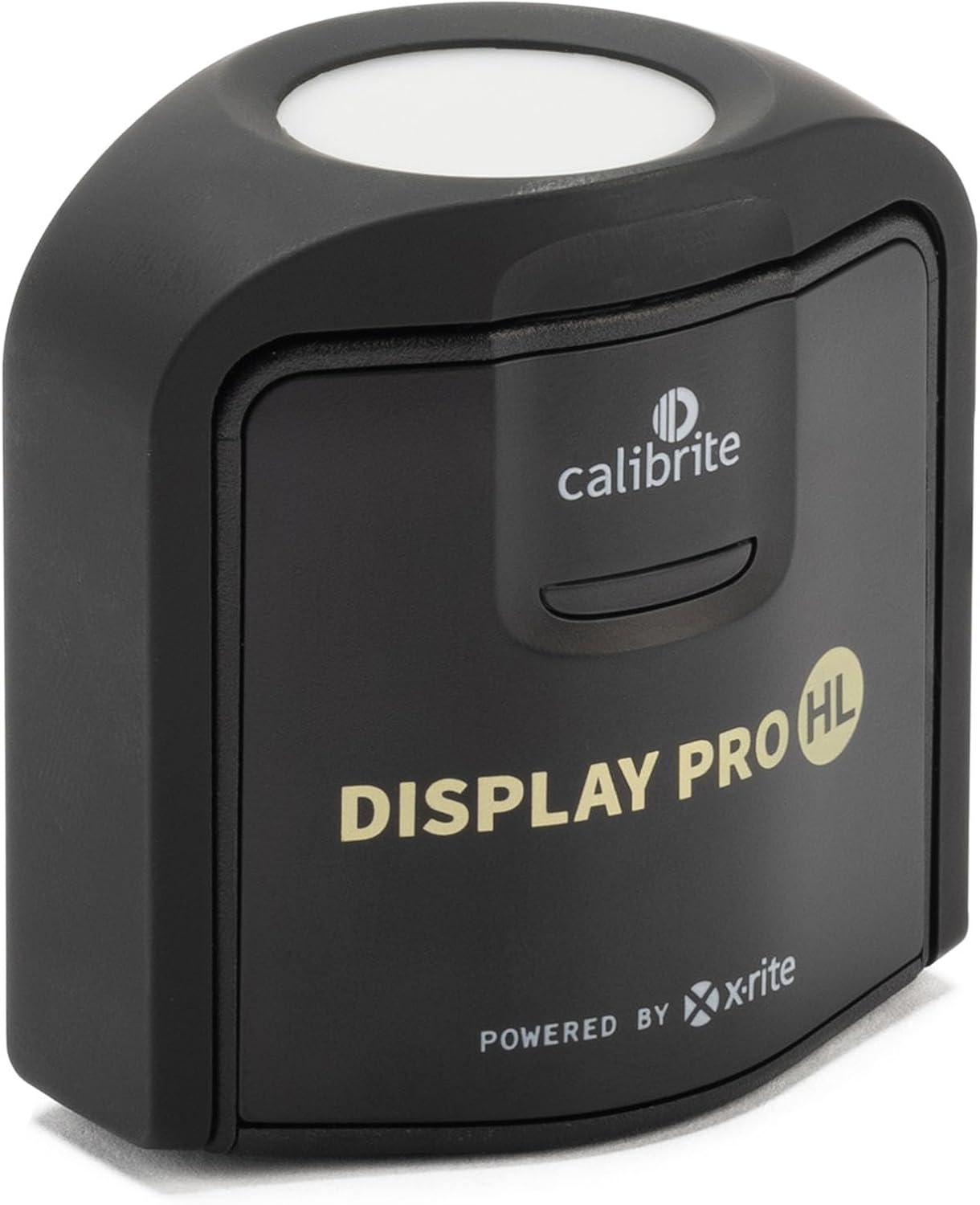
That box of slides, those scanned negatives, the restored print you spent four hours color-correcting — all of it lives or dies by one thing you’ve probably never measured: whether your monitor is actually showing you accurate color. A monitor calibrator is a small hardware device (sometimes called a colorimeter — think of it as a precise light-reading probe) that sits on your screen, reads what colors it’s actually producing, and generates a custom ICC profile (a translation table your operating system uses so software sees accurate color). Without one, you’re making restoration decisions based on what your display claims to show, not what it actually does. This article compares the two dominant tools in the restorer’s market — Datacolor’s Spyder line and Calibrite’s Display Pro HL — tells you who should buy which, and answers the questions that show up repeatedly in buyer reviews.
The stakes are real. If you’re correcting the magenta cast on a degraded Ektachrome slide and your monitor is pushing its own uncorrected red channel two points warm, you’ll overcorrect every time — and you won’t know until you send a proof print and it comes back cool. Hardware calibration closes that loop.
The Factory Default Problem Is Worse Than You Think
The most consistent finding in long-form reviews of both the Calibrite Display Pro HL and the Datacolor Spyder line is how far off factory-calibrated displays turn out to be. Luminous Landscape’s practical calibration guide — “Monitor Calibration for Photographers: A Practical Guide,” published on luminous-landscape.com — describes it as the industry norm: manufacturers optimize factory settings for showroom brightness and perceived pop, not color accuracy. Wirecutter’s “The Best Monitor Calibrator” guide (thewirecutter.com, updated 2025) corroborates this, noting that even prosumer panels routinely arrive with measurable white-point and gamma errors that affect color-critical work.
The gap matters differently depending on your work. If you’re doing batch scanning and rough culling, a slightly warm display is annoying but survivable. If you’re making print-ready restoration files — especially for fine-art output or archival reproduction — and your monitor’s white point is sitting at 7500K instead of the D65 standard (6500K, the agreed-upon neutral daylight standard for color-critical work), every warm-tone judgment call you make is built on a false foundation.
Typical factory display drift observed in calibration testing:
| Display type | Typical uncorrected ΔE | Post-calibration ΔE target |
|---|---|---|
| Budget IPS / TN panel | ΔE 6–12 | ΔE < 2 |
| Prosumer IPS (ProArt, BenQ SW) | ΔE 2–5 | ΔE < 1 |
| Consumer OLED (uncorrected) | ΔE 3–8 | ΔE < 1.5 |
(ΔE, or Delta E, is the standard unit for measuring color difference — a ΔE of 1 is roughly the threshold of human perception; anything above 3 is visible to most viewers.)
Spyder vs. Calibrite Display Pro HL: Head-to-Head by Use Case
Both Datacolor and Calibrite (formerly the consumer division of X-Rite) produce colorimeters that use a physical sensor and guided software to build ICC profiles — the color-translation files that tell your OS how to interpret what a specific monitor produces. The hardware approach beats software-only tools (like OS-level gamma sliders or monitor OSD presets alone) because it measures actual emitted light rather than assuming factory specs are accurate.
The three comparison tiers below reflect where each tool lands for restorers at different stages of practice and with different display hardware.
H3: Entry-Level Calibration — One Monitor, Standard IPS Display
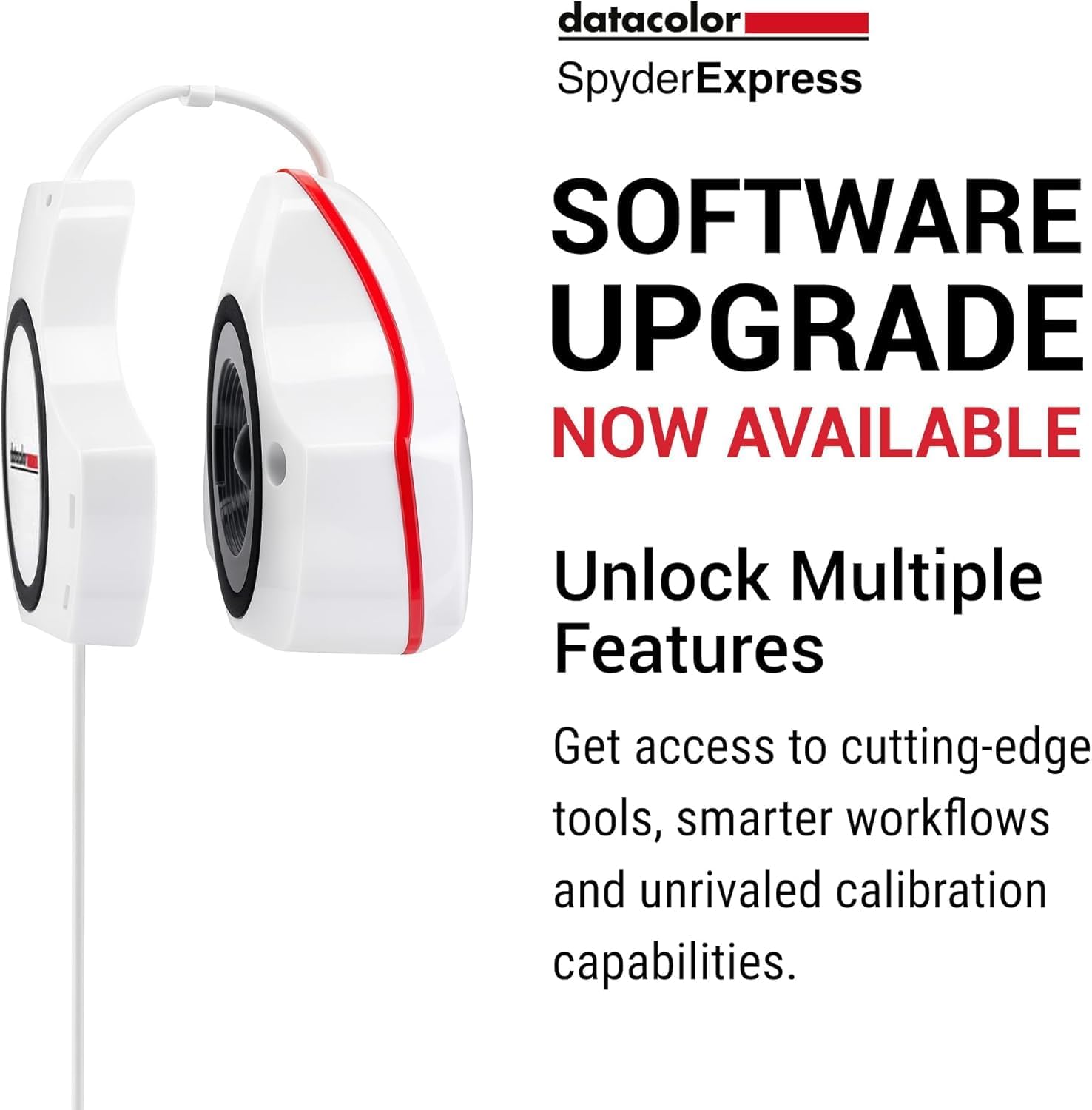
The Datacolor Spyder X2 Express targets this tier. For a restorer working on a single SDR IPS panel — a BenQ SW series, an ASUS ProArt PA278CV, or a comparable prosumer display — the Express provides guided calibration, a basic ambient light reading, and a faster patch-measurement cycle than higher-tier tools. The software is well-regarded for clarity, though multiple reviewers documented in Wirecutter’s “The Best Monitor Calibrator” guide note that the Spyder software’s initialization and profile-build cycle runs notably slower on Windows 11 than on Windows 10 or macOS. This appears to be a driver interaction rather than a hardware deficiency, but for a time-sensitive workflow it is a real friction point.
The Calibrite Display Pro (non-HL) competes directly at this tier and has earned consistent praise in aggregated reviews — including Wirecutter’s guide — for software clarity and profile accuracy on standard SDR displays. At this tier, either tool produces results that are substantially better than uncalibrated — and either is a meaningful upgrade over any factory default.
Datacolor
$99.00
In stock on Amazon
Check price on AmazonH3: Mid-Tier Calibration — Multi-Monitor Studios and Print-Referencing Workflows
The Datacolor Spyder X2 Pro and the Calibrite Display Pro both serve this tier. The Spyder X2 Pro adds a larger color patch set and improved ambient compensation over the Express, which matters when your studio lighting varies across sessions. The Calibrite Display Pro’s profile management software handles multi-display setups with slightly less friction at this tier, a point noted in B&H Photo’s comparison guide “Colorimeter vs. Spectrophotometer: Choosing the Right Calibration Tool” (bhphotovideo.com).
At this tier, the choice often comes down to ecosystem: if you’re already running Datacolor hardware elsewhere in your studio, the Spyder X2 Pro’s upgrade path is clean. If you’re starting fresh, the Calibrite Display Pro’s software reputation and multi-display handling make it a slightly more flexible platform. Either tool targets ΔE < 1 on prosumer IPS displays when used correctly — sufficient for print-referencing workflows where you’re matching restored files to proofing output.
One support-related caveat worth naming directly: at least one detailed reviewer account — documented in Wirecutter’s “The Best Monitor Calibrator” coverage — describes encountering a calibration error during the Spyder measurement cycle and finding no functional support channel: phone support routed to voicemail, forum responses delayed. Calibrite’s support reputation in the same aggregated coverage skews slightly better for responsiveness. For a professional with active deadlines, this is a legitimate risk to weigh when choosing a primary tool.
Calibrite
$199.00
In stock on Amazon
Check price on AmazonH3: Premium Calibration — OLED, Mini-LED, and High-Luminance Displays
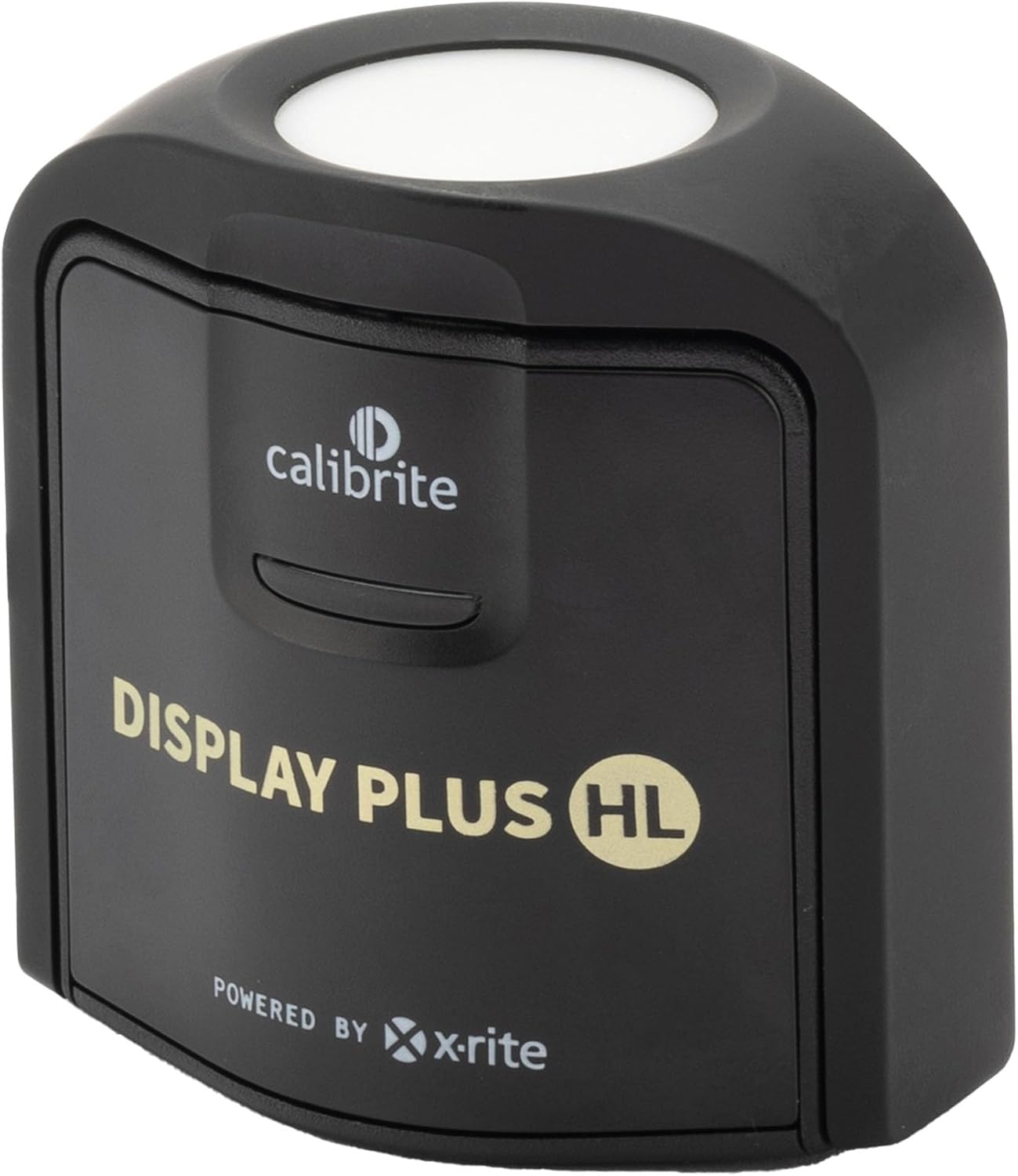
The Calibrite Display Pro HL is the clear recommendation at this tier, and the “HL” (High Luminance) designation is the reason. Standard colorimeters — including most Spyder models and the non-HL Calibrite — are calibrated for SDR displays in the 80–300 nit brightness range. Modern OLED panels, mini-LED monitors, and HDR-capable displays routinely hit 600–1,000+ nits in peak output, which pushes standard colorimeter sensors into measurement error as the sensor saturates.
The Display Pro HL’s sensor is designed for this extended luminance range. Calibrite’s own compatibility documentation — “Display Pro HL Product Overview and Compatibility Notes,” Calibrite official documentation, 2025 — lists the LG C-series OLED, Samsung OLED, and ASUS ProArt OLED variants as confirmed compatible. B&H Photo’s colorimeter comparison guide on bhphotovideo.com frames this as a physics distinction in sensor design, not a marketing tier difference: a standard colorimeter cannot accurately read luminance it was never calibrated to measure.
The Spyder X2 Elite is the Datacolor equivalent at this price point and is a capable tool for advanced SDR profiling and multi-display studio environments — but it does not address the high-luminance measurement gap. Restorers working on OLED or mini-LED panels should not assume the Elite’s higher price maps to OLED capability; it does not. For those displays, the Display Pro HL is the current accessible consumer option with documented validation.
DPReview’s “Color Management for Photographers: Getting Your Monitor Right” (dpreview.com) reinforces this point: the choice between colorimeter tiers for OLED users is not a budget preference but an accuracy requirement.
Calibrite
$259.00
In stock on Amazon
Check price on AmazonThe ProArt Connection: Hardware OSD Controls After Calibration
If you’re working on an ASUS ProArt monitor — the PA278CV, PA32UCX, or the ProArt OLED variants — calibration hardware pairs with those displays in a way worth understanding. ProArt monitors include 6-axis OSD color controls (OSD = on-screen display, the menu built into the monitor itself). Most monitors let you adjust brightness and contrast; ProArt’s 6-axis system lets you independently push or pull hue, saturation, and lightness on each of six color channels (red, green, blue, cyan, magenta, yellow) from within the monitor’s hardware before the signal reaches your OS.
The workflow implication: after running a calibration pass with a Display Pro HL or Spyder X2 Elite, a restorer on a ProArt can use the ICC profile as a diagnostic map — identifying which channels the software profile is compensating for most heavily — and then make partial hardware corrections via the OSD to reduce the compensation burden on the software profile. A lighter software profile means less color math applied in real time, which Luminous Landscape’s calibration guide (“Monitor Calibration for Photographers: A Practical Guide,” luminous-landscape.com) notes can reduce subtle rendering artifacts in gradients. It’s a small optimization, but it matters when you’re evaluating smooth tonal transitions in a scanned Kodachrome original.
Frequently Asked Questions
How out of calibration are most factory-set monitors, and will I notice the difference after calibrating? Significantly out, in most cases. Luminous Landscape’s practical calibration guide describes factory defaults as optimized for showroom brightness rather than accuracy, and Wirecutter’s “The Best Monitor Calibrator” guide (thewirecutter.com, updated 2025) documents that even prosumer panels routinely show meaningful white-point errors out of the box. After calibration to D65/sRGB targets, most users report immediately visible changes in neutral grays and skin tones in photographs, particularly in shadow areas.
Does a standard colorimeter work on OLED and mini-LED displays, or do I need the HL version? Standard colorimeters — including most Spyder models and the non-HL Calibrite Display Pro — are designed for luminance levels up to roughly 300–400 nits. OLED and mini-LED displays that peak at 600–1,000+ nits will cause standard sensors to produce inaccurate readings due to sensor saturation. The Calibrite Display Pro HL is currently the accessible consumer option validated for high-luminance panels, with specific OLED model compatibility confirmed in Calibrite’s own product documentation (“Display Pro HL Product Overview and Compatibility Notes,” Calibrite official documentation, 2025).
How long does a monitor calibration actually take? A basic Spyder X2 Express calibration run typically takes 5–10 minutes on a standard SDR display. The Calibrite Display Pro HL’s full patch measurement runs closer to 10–15 minutes for a thorough SDR calibration, longer for HDR profiling. The Windows 11 speed issue reported in multiple Spyder reviews adds unpredictable overhead to the Spyder initialization stage specifically — reviewers note the measurement phase itself is unaffected.
What do I do if the calibration software generates an error and won’t save the profile? First: don’t close the software. Some colorimeter software allows you to export raw measurement data even after a profile-save error — check for an “export measurements” or “save session” option before quitting. Second: manually load a previous ICC profile via your OS color management panel (on macOS: System Settings → Displays → Color; on Windows: Color Management in Control Panel) to restore a working state. Third: having a tested fallback profile before you need it is a reasonable precaution regardless of which tool you use. Calibrite’s support responsiveness is rated slightly better in aggregated review coverage than Datacolor’s for escalated issues.
How often do I need to recalibrate? Monitor displays drift over time as backlights age and panel characteristics shift. The standard recommendation from color management resources including Luminous Landscape’s calibration guide (luminous-landscape.com) and DPReview’s color management guide (dpreview.com) is recalibration every 4–6 weeks for active professional use, or after any significant change in ambient environment. A one-time calibration is meaningfully better than no calibration — but a monitor that was accurate six months ago may have drifted enough to affect critical color decisions.
How does a monitor colorimeter work alongside a ColorChecker Passport? A colorimeter calibrates your display’s output to a known standard (typically D65 white point, sRGB or AdobeRGB gamut target). A ColorChecker Passport calibrates your camera’s color capture — building a camera profile that corrects for the specific sensor and lighting conditions at capture. Used together in sequence (calibrate the display first, then generate and apply a camera profile), they create a color-managed pipeline from capture through display. Both tools address different links in the same chain; neither replaces the other. For archival restoration work specifically, the display calibration step is typically more impactful because it affects your ability to evaluate every scan you’ve already made.
The bottom line for a restorer with active projects: if you’re making color decisions on an uncalibrated display, you’re working with a systematically unreliable reference. Hardware calibration costs less than one professional print job gone wrong. The Calibrite Display Pro HL is the recommendation for OLED and high-luminance displays; the Spyder X2 Pro is a solid choice for standard IPS workflows, with the Windows 11 initialization caveat noted. Either way, the first calibration run will almost certainly show you something surprising — and that surprise is exactly the point.