August 27, 2026 • Doug Porter • 10 min reading time • Prices verified June 25, 2026
The Inherited Slide Collection Survival Guide: From Projector Boxes to Digital Files
You found a shoebox, or maybe an entire milk crate, full of mounted slides — small squares of film in cardboard or plastic frames, the kind that click through a carousel projector. They might be labeled in someone’s handwriting, or completely mysterious. Either way, they almost certainly contain images you have never seen: birthdays, vacations, faces of people who died before you were old enough to remember them. That is the emotional weight sitting in those little cardboard mounts. This guide exists to help you move those images from a dark box to a digital file you can actually see, share, and preserve — without wasting money on the wrong tools or losing months to an unmanageable workflow.
If you’ve already scanned a few hundred slides and are now confronting the real scale of the project — or you’re about to commit to a hardware purchase for a collection of 500 or more frames — you’re in the right place. We’ll cover triage before scanning, realistic throughput numbers, dust management (the unglamorous step most guides skip), and honest tradeoffs between consumer digitizers and dedicated film scanners.
| EDITOR'S PICKKODAK Slide N SCAN Film & Slide… | Mid-tierKodak SCANZA Digital Film & Sli… | Budget pickDIGITNOW!35mm Slide and Film Vi… | |
|---|---|---|---|
| Max resolution | 22MP | — | — |
| LCD screen | 5" | 3.5" | — |
| Film formats | 135, 126, 110 | 35mm, 126, 110, Super 8 | 35mm |
| Power source | — | — | USB / 4AA batteries |
| Output format | JPEG | JPEG | — |
| Magnification | — | — | 3X |
| Price | $159.99 | $135.99 | $22.39 |
| See on Amazon → | See on Amazon → | See on Amazon → |
Step One: Triage Is Not Scanning (And It Comes First)
This is the distinction most inherited-collection guides miss entirely. Triage — deciding which slides are worth digitizing at all — is a separate workflow step that requires different tools than scanning. Conflating the two wastes time and degrades your results.
A slide viewer (a small backlit device, sometimes handheld, that illuminates one slide at a time) and a light pad (a flat, evenly lit panel, typically A4 or larger, that lets you lay out many slides simultaneously) serve fundamentally different triage functions.
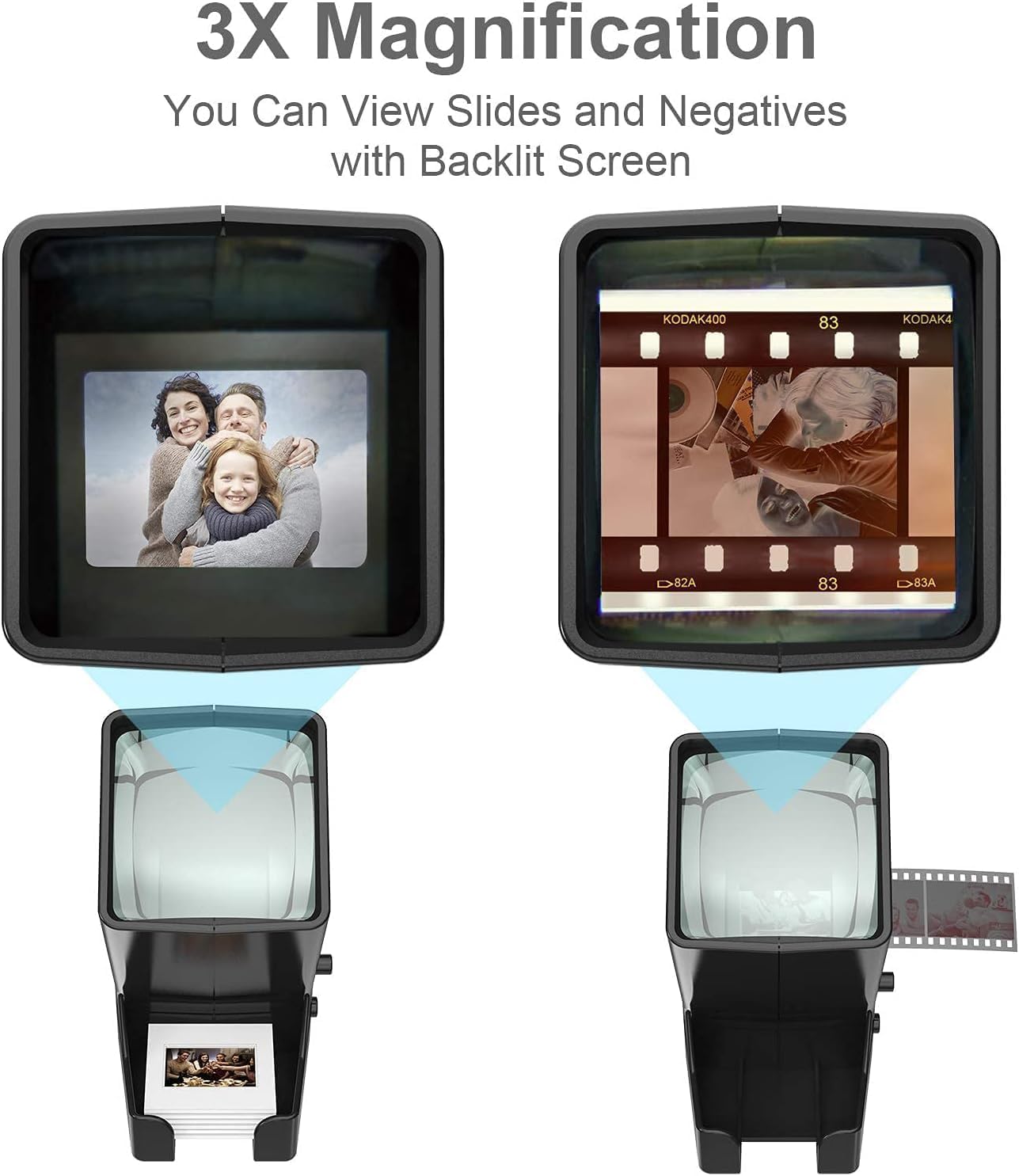
- A one-at-a-time viewer like the DIGITNOW slide viewer is useful for close inspection of individual frames — checking for mold, severe scratching, or emulsion damage before you commit to scanning.
- A light pad (the Photomyne A4 light pad is the most-cited option in this category) lets you spread out 20–30 slides at once and make broad keep/skip decisions visually and quickly. Reviewers consistently describe this as the tool that makes a 1,500-slide collection feel manageable rather than paralyzing.
The practical workflow: use the light pad first to sort into three piles — scan at full quality, scan at lower priority, discard or archive without scanning. Then use a single-slide viewer to inspect your “scan at full quality” pile for physical defects before any slide touches your scanner glass.
Do you need both? For collections under 200 slides, a light pad alone is sufficient. For anything over 500 slides, owning both tools pays for itself in time saved.
Cleaning Slides Before Scanning: The Unglamorous Step That Changes Everything
Across nearly every consumer film digitizer review, dust shows up as the primary complaint affecting image quality. This is not a scanner problem — it is a physics problem. A slide scanner’s light source is designed to reveal fine detail, which means it also reveals every particle of dust on the film surface with equal enthusiasm.
The cleaning protocol that experienced digitizers use:
- Compressed air first. Hold the slide by its mount and use short bursts of canned air (held upright to prevent propellant from hitting the film) to dislodge loose surface dust. Do this in a low-traffic room, not near an air vent.
- Anti-static brush second. A Kinetronics or Photographic Solutions brush (both are cited across filmscanner.info’s workflow documentation) neutralizes static charge that causes dust to re-adhere immediately after the air step.
- Pec-Pad + Eclipse fluid for stubborn contamination. Photographic Solutions Eclipse optical cleaning fluid on a Pec-Pad lint-free wipe removes fingerprint oils and stuck particles. Always wipe in one direction along the long axis of the film — never circular scrubbing.
- Never use household glass cleaner or paper towels. The Library of Congress Preservation Directorate explicitly warns against alcohol-based cleaners on color slide film — they can lift dye layers on older Kodachrome and Ektachrome stocks.
One additional note for inherited collections specifically: if you see white or grey fuzzy growth on any slide, that is mold, and it requires isolation and separate handling before it spreads. The Library of Congress’s “Caring for Your Photographs” guide covers mold remediation in detail and is the reference standard here.
Realistic Throughput: What Consumer Digitizers Actually Deliver
Here is the number that most buying guides don’t give you: one documented user who processed a 1,500-slide collection with the Kodak Slide N Scan Max reported throughput of 150–175 slides per hour under real working conditions. That means:
| Collection Size | Estimated Scan Time (150–175 slides/hr) |
|---|---|
| 200 slides | 1.1–1.3 hours |
| 500 slides | 2.9–3.3 hours |
| 1,000 slides | 5.7–6.7 hours |
| 1,500 slides | 8.6–10 hours |
These are active scan hours, not project hours. Factor in triage, cleaning, file organization, and quality-checking, and a 500-slide project realistically spans a weekend; a 1,500-slide collection spans weeks of intermittent sessions.
Consumer digitizers like the Kodak Slide N Scan Max, the KODAK SCANZA, and the Wolverine F2D Titan achieve this throughput because they use a fixed-focus sensor rather than a precision scanning mechanism — you load, capture, and move on. The tradeoff is optical resolution: most consumer digitizers produce files equivalent to roughly 3–5 megapixels of actual resolved detail, regardless of the “14MP” or “22MP” marketing figure on the box. Imaging-resource.com’s scanner coverage consistently notes this gap between interpolated marketing resolution and true optical resolution for this device category. For family history documentation and standard 4×6 or 5×7 prints, this is adequate. For large fine-art prints or archival preservation at the highest fidelity, it is not.
When to Upgrade to a Dedicated Film Scanner
If any of the following apply to your situation, the math shifts toward a dedicated film scanner — either a flatbed with a transparency adapter (like the Epson Perfection V850 Pro, which Epson’s published specs rate at 4,800 optical dpi for film) or a dedicated slide scanner (like the Plustek OpticFilm 8300i Ai):
- The collection has archival or historical significance. The Signal Corps slides mentioned by one reviewer — documenting 1950s military photography — are an example where consumer-quality scans would be a genuine loss. Published specs for the Epson V850 Pro put true optical resolution at 4,800 dpi for film, producing files that support large print output and future re-scanning avoidance.
- You’re encountering significant color shift. Kodachrome slides (the dominant format from the 1940s through the 1980s) develop a characteristic cyan shift as they age — the red dye layer fades first. Ektachrome slides tend toward magenta shift. Consumer digitizers apply one-size-fits-all auto-correction that often overcorrects or undercorrects these stock-specific fades. Software like Silverfast (which ships with the Plustek OpticFilm line) includes film-stock-specific color profiles that address these shifts at the raw scan stage, before any destructive editing.
- You have more than 1,000 slides you consider high priority. At that volume, the per-frame quality difference compounds across the collection in ways that become visible when you compare outputs.
- IR dust removal matters to you. Dedicated scanners in this tier offer Digital ICE or equivalent infrared dust detection — a second infrared pass that maps and removes dust digitally without touching the film. Critical caveat from filmscanner.info and multiple scanner forums: infrared dust removal does not work on Kodachrome. The silver content in Kodachrome’s dye structure makes it opaque to the infrared pass, and Digital ICE will corrupt the image rather than clean it. Manual cleaning before scanning is the only reliable method for Kodachrome — this is not a workaround, it is the correct workflow.
Storage: What to Do With Files After Scanning
A scan you can’t find in five years is not preserved — it’s just delayed loss. Per the Library of Congress digitization guidelines and Kodak Alaris’s archival documentation, the minimum viable storage strategy for a personal digitization project is:
- Primary storage: External SSD or HDD kept in a consistent, climate-moderate environment
- Cloud backup: At least one cloud location (the 3-2-1 rule: three copies, two media types, one offsite)
- Format: TIFF for archival masters if storage allows; high-quality JPEG for sharing copies. Consumer digitizers often output JPEG only — if this is your situation, choose the highest JPEG quality setting available and do not re-save JPEG files repeatedly.
SD card sizing for large projects: Consumer digitizers typically output JPEG files in the 3–8 MB range per slide at their highest quality settings. A 500-slide project produces roughly 1.5–4 GB of files. A 32GB SD card is comfortable for up to 1,500 slides; a 64GB card eliminates the need to offload mid-project.
Frequently Asked Questions
How do I know if old inherited slides are worth scanning or too degraded to bother? Hold them up to a window or light pad. If you can see a recognizable image — even faded — the slide likely contains recoverable information. True total losses are rarer than people expect. Heavy mold, physical tears through the image area, and complete silvering (a mirror-like opacity) are the conditions that genuinely make scanning futile. Color shift and fading alone are not disqualifying — software can recover a surprising amount.
What is the difference between a slide viewer and a light pad, and do I need both? A slide viewer shows one slide at a time with magnification — useful for inspecting individual frames for defects. A light pad illuminates many slides simultaneously for broad triage. For collections over 300 slides, the combination is genuinely faster than either alone. For smaller collections, a light pad is the higher-value single purchase.
How long does it realistically take to scan 500 slides with a consumer digitizer? At the documented rate of 150–175 slides per hour (active scanning), expect 3–3.5 hours of scan time. Total project time including triage and cleaning is typically a full weekend for a first-time operator.
Can a consumer film digitizer handle slides that are already faded or color-shifted? Yes, with caveats. Consumer digitizers apply automatic color correction that helps with moderate fading but handles stock-specific shifts (Kodachrome cyan, Ektachrome magenta) inconsistently. For documentation purposes, the output is usually acceptable. For heirloom print quality, post-processing in Lightroom or Photoshop — or dedicated software like Silverfast — significantly improves results.
What SD card size do I need for a large slide scanning project? A 32GB card handles approximately 1,000–1,500 slides at high JPEG quality. A 64GB card covers the largest personal collections without mid-project interruption. Buy name-brand cards (SanDisk, Samsung) — card failure during a long digitization session is a real risk with off-brand media.
Should I clean slides before scanning and if so how? Yes, always. The sequence: compressed air, anti-static brush, then Pec-Pad with Eclipse fluid for anything that remains. Skip household cleaners entirely. For mold, consult the Library of Congress’s “Caring for Your Photographs” before touching the affected slides — mold is contagious within a collection.
The Decision Rule
If you have under 300 slides, the collection is personal documentation (not archival), and print size requirements are 5×7 or smaller: a consumer digitizer like the Kodak Slide N Scan Max paired with a light pad for triage is the right starting point. It is fast, accessible, and the output matches the use case.
If you have over 500 slides, any frames of historical significance, or you’re seeing Kodachrome or Ektachrome stock-specific color shift: the Epson Perfection V850 Pro or Plustek OpticFilm 8300i Ai produces fundamentally different output that justifies the price difference when amortized across a large collection. The upgrade path is not aspirational — it’s the practical choice once volume and quality requirements cross those thresholds.
The slides in that box waited decades. A few hours of deliberate triage and the right tool for your actual collection size will determine whether they wait another generation, or finally come home.